Upcoming sign-in transition
Starting this summer, Information Technology (IT) Services will begin a university-wide sign-in transition. This update will introduce a new login format for accessing Ontario Tech's systems; an important step toward enhancing security and modernizing our infrastructure to prepare for the Banner transformation project.
To support this change, IT Services staff will work directly with departments and faculties throughout the rollout to help coordinate and complete each transition. We will contact your department staff when it's time to prepare for their transition and will provide clear instructions on any next steps.
What’s Changing?
Current login format: oncampus\Banner ID
New login format: ontariotechu\Banner ID
Example:

Note: When signing in, be sure to use a backslash \ not a forward slash /
Timeline
The project will be completed in four phases, with each transitioned group adopting the new login format following their phase rollout.
What do you need to do?
-
Pre-transition
- Restart your computer a day before.
- Save and close all applications before the transition.
- The day before the transition, refrain from moving any big files.
- Make sure you are connected to Wi-Fi or plugged into a docking station before the transition.
- A postcard will be distributed within your department or faculty before the transition. It contains day of transition and post transition steps. If you don't receive a postcard, please email ADMigration@ontariotechu.ca.
-
Day of transition
Note: The transition will take up to 1 hour to complete. You may experience brief delays with some sign-in prompts immediately following the transition.
Step 1: Before the transition, make sure you are sitting at your regular work station, connected to Wi-Fi or plugged into a docking station at least 10 minutes before your designated start time, to help minimize the transition time. If you cannot connect 10 minutes early, this may delay your transition time.
Step 2: Shortly after your scheduled transition time, your computer will display a message indicating it will reboot and begin the migration within approximately 60 seconds.
Step 3: Once your device has rebooted, reconnect to CAMPUS AIR Wi-Fi (If you're not connected to a docking stations) using ontariotechu\Banner ID and your network password. Then log into your device using your Banner ID and network password.
Step 4: After logging in, wait until you receive the pop-up stating your migration has been complete and then you can begin logging into your systems using the new login format below.
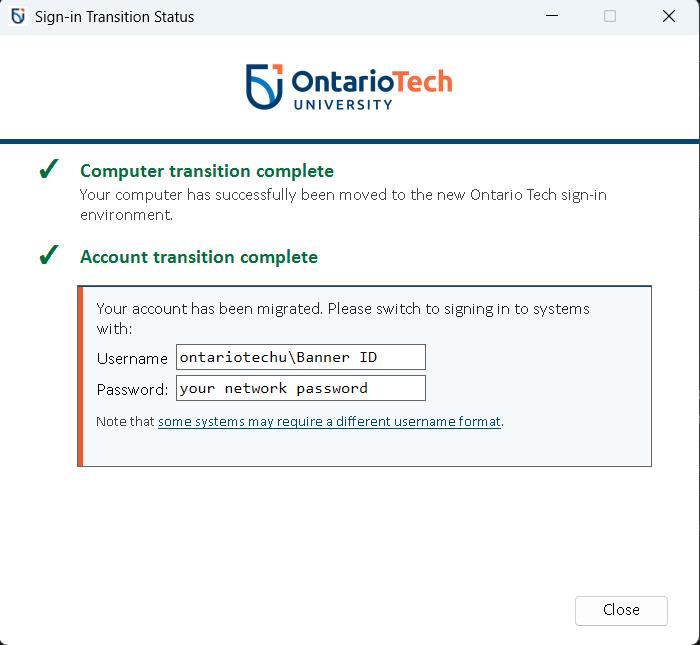
Current login format: type oncampus\Banner ID
New login format: type ontariotechu\Banner ID
Example of new sign in format:

Step 5: If you use any Ontario Tech systems or tools on your cellphone, you will need to re-sign in on your device.
-
Post-transition
- You may experience brief delays with some sign-in prompts immediately following the transition.
- Support will be available to you during your transition. Reference your instruction postcard for more information on the location of the support room.
Frequently asked questions
Learn more - Frequently asked questionsSystems with sign-in changes
Learn more - Systems with sign-in changesIf you have any questions, please contact us at ADMigration@ontariotechu.ca. We’re here to help make the transition as smooth as possible.