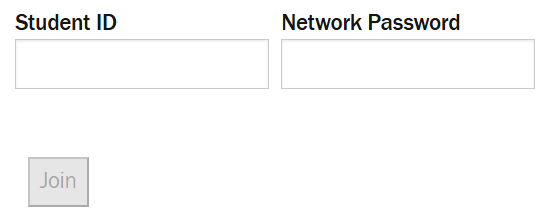
Systems with sign-in changes
The way you sign-in to some Ontario Tech systems is changing with this transition.
Step 1: Choose the option that match your transition status
| After Transition instructions: | Before Transition instructions: |
|
|
Step 2: Reference the instructions that match your transition status
For a quick guide, select the way you login into your device below.
Note: In all cases, use your Ontario Tech network password.
Detailed guides
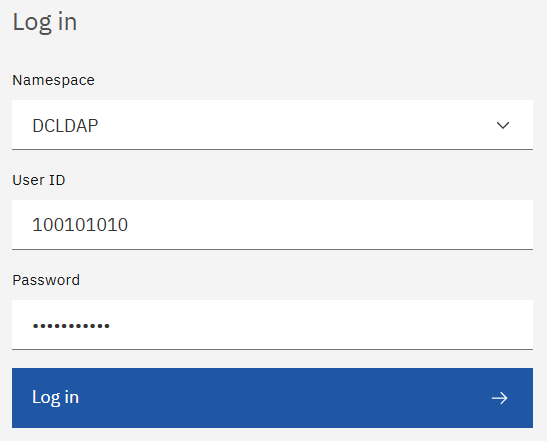
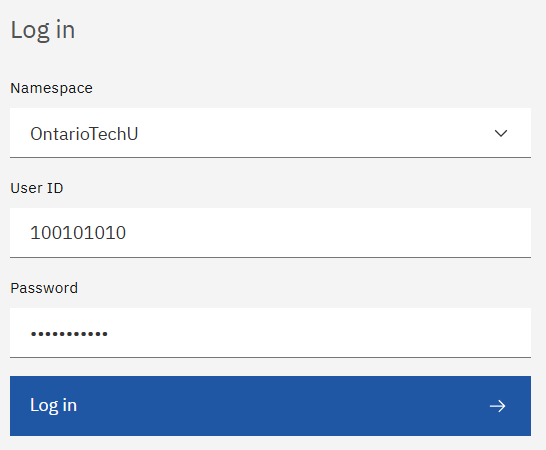
What will change in Cognos? Select DCLDAP before transition, or OntarioTechU after transition. Your username and password will stay the same.
Step 1: Select DCLDAP.
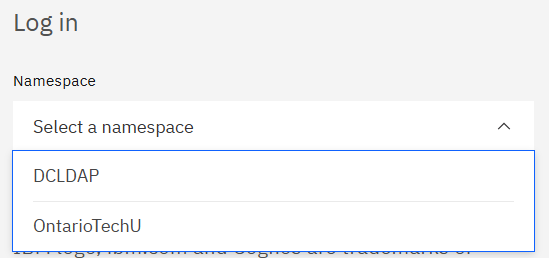
Step 2: Sign in with:
Username: Banner ID
Password: Network password
What will change in Cognos? Select DCLDAP before transition, or OntarioTechU after transition. Your username and password will stay the same.
Step 1: Select OntarioTechU.
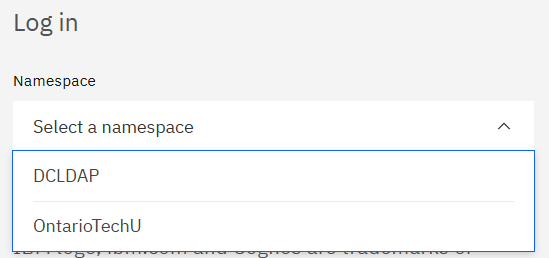
Step 2: Sign in with:
Username: Banner ID
Password: Network password
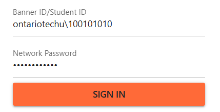
What will change for websites or systems that display the Ontario Tech login page? After the transition, you will sign in using the ontariotechu\ before your Banner ID or Student ID. Your password will stay the same.
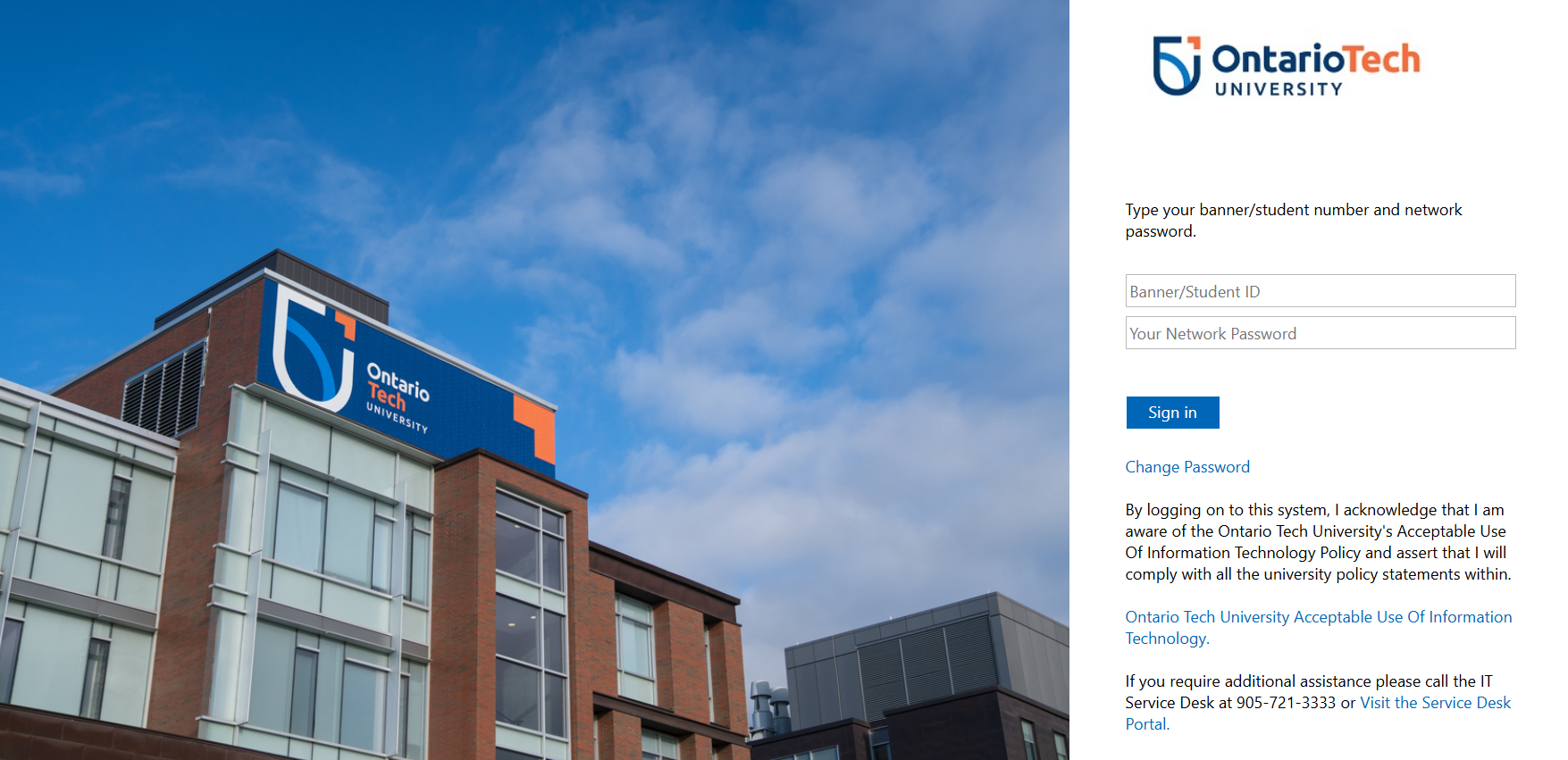
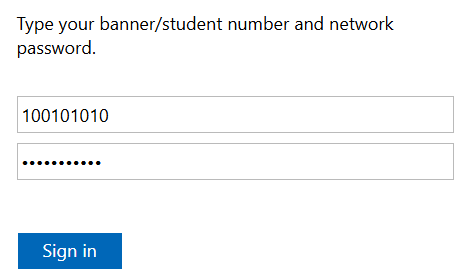
What will change for websites or systems that display the Ontario Tech login page? After the transition, you will sign in using the ontariotechu\ before your Banner ID or Student ID. Your password will stay the same.
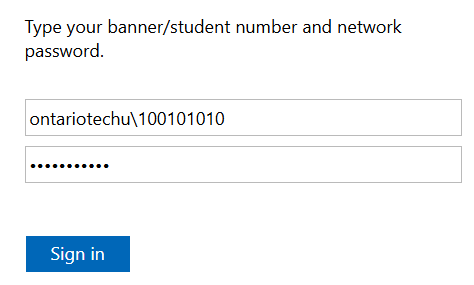
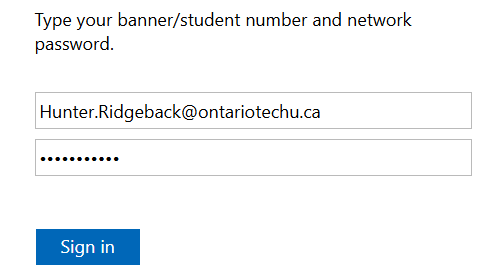
What changes will you see in other Ontario Tech systems that let you sign-in with your network credentials? After the transition, sign in using the ontariotechu\ prefix before your Banner ID or Student ID. Your password will stay the same.
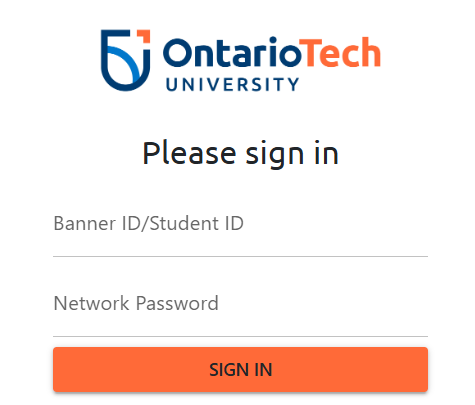
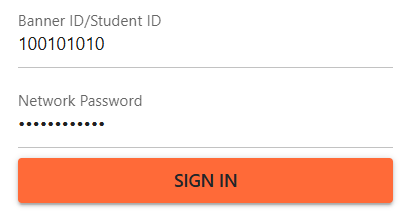
What changes will you see in other Ontario Tech systems that let you sign-in with your network credentials? After the transition, sign in using the ontariotechu\ prefix before your Banner ID or Student ID. Your password will stay the same.
Systems that are not changing
https://itsc.ontariotechu.ca/services/vpn.php
What changes? VPN sign-in does not change during the transition. Your username and password stay the same.
VPN Client Download Page
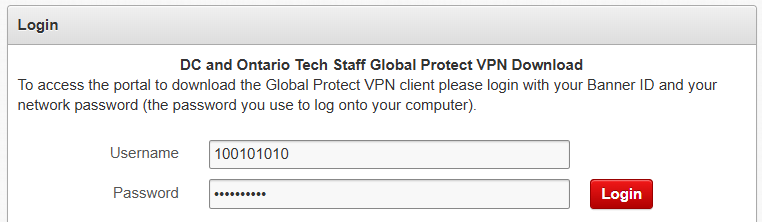
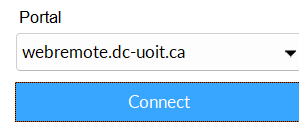
What changes? VPN sign-in does not change during the transition. Your username and password stay the same.
VPN Client Download Page
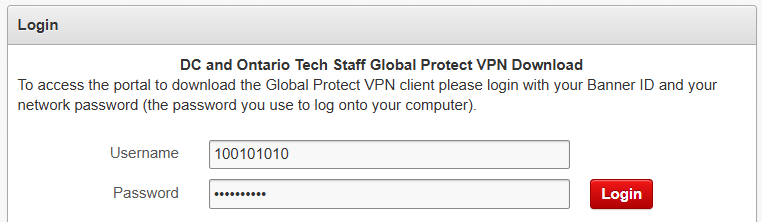
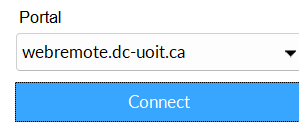
https://apps.library.dc-ot.ca/OTrooms/calendar.aspx
What changes? Group Study Room Booking sign-in does not change during the transition. Your username and password stay the same.
Sign in with: