Managing junk email in Microsoft Outlook
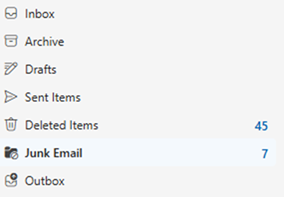
Email security tools in Microsoft Outlook help protect your inbox by automatically filtering messages that appear to be spam or potential phishing attempts. These messages are moved to your Junk Email folder to reduce risk and keep your inbox organized.
Note: Emails in the Junk folder are automatically deleted after 60 days, it’s important to review this folder regularly to make sure legitimate messages haven’t been filtered by mistake.
How to ensure future emails go to the correct location
-
Add to Safe Senders
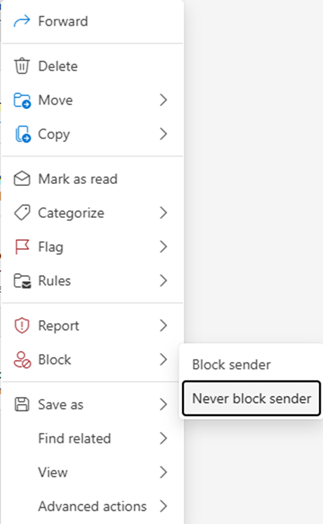
If you frequently receive emails from the sender’s email address, then adding them to your Safe Senders will ensure that emails from that address don’t go to Junk Email.
Follow the steps below to add a email address to your Safe Senders list.
Step 1: Right-click on the email.
Step 2: Select Block.
Step 3: Select > Never Block Sender.
-
Report not junk
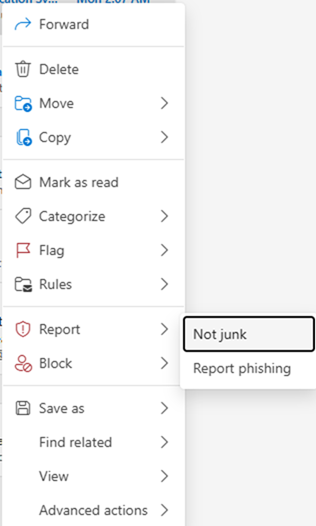
If you wish to move an email out of the Junk Email folder into your inbox, follow the steps below.
Step 1: Right-click on the email in the Junk Email folder.
Step 2: Select Report.
Step 3: Select > Not Junk.
This will help train Outlook on the types of emails that should go to the Junk Email folder.